General Information

Who Can Download?

A valid myLSU ID & Password are needed to download licensed software from TigerWare.

  • Available to Active Faculty, Students, & Staff for Campuses:
    • LSU Baton Rouge Campus
    • LSU Law Center
    • LSU Ag Center
  • Incoming LSU Students when the first day of your first semester at LSU begins. 
     

Software Availability, Licensing Information & Lab Location

All Available Software Packages, Installation Files, & Lab Locations

Commercial Software & Licensing Information
 

( More )

image of Office 365 ProPlus logo

General Information

Office 365 ProPlus is a new subscription plan for Office 365. It enables users or businesses to extend their Office productivity software (including Word, Powerpoint, Excel, and others) to allow installations to up to 5 different devices per user. The account is tied to the user, not to any one device, so it allows seamless interaction between working on home devices and on mobile devices. It also allows users to deactivate their software in the case that any one of their devices is compromised or if a person leaves the business.

( More )

Windows 11 Logo

General Information

Windows 11 is a Microsoft Operating System (OS). Along with its many similarities to Windows 10, including the new design of the Start menu, Windows 11 also introduces a more strict requirement among device specifications in order to upgrade. Other features include:

  • "Multi-doing", which allows up to four things on a screen at one time
  • An expanded Windows Store with many available apps
  • Built in apps that use OneDrive to sync and back up information across all devices
  • An improved Settings app with further features imported from legacy Control Panel
( More )

   ArcGIS Logo

General Information

ArcGIS is most commonly used for those who depend on accurate geographic information in decision making. ArcGIS allows for easy collaboration and the ability to author data, maps, globes, and models on the desktop to serve them out for use on a desktop, browser, or in the field. 

ArcGIS comprises the following offerings:

  • ArcGIS Pro: A suite of extended apps and products offered directly from the online ArcGIS portal via myLSU. Uses pre-allocated Pro credits to compute functions.
  • ArcGIS Pro Desktop: A local application that allows for offline use and does not require online Pro credits to use. Still ties in with ArcGIS Pro functions as desired.
  • ArcGIS Server: Allows a department to host and share GIS data to others within LSU.
  • ArcGIS Hub: Allows a department to set up an ArcGIS internal website and publish data under the LSU license.

Please contact the ITS Service Desk (servicedesk@lsu.edu) for ArcGIS Server license resources or ArcGIS Hub site setup.
 

Availability at LSU

ArcGIS Pro & Desktop: Available for all LSU campuses via enterprise license.

ArcGIS Server/Online Hub site: Contact ITS Service Desk (servicedesk@lsu.edu)

  • NOTE: Use of the LSU ArcGIS products is not allowed for individual commercial (non-LSU) purposes or consulting work where the deliverable information is intended only for a third party.
     

Download ArcGIS

ArcGIS Pro: Sign into ArcGIS with myLSU credentials via https://lsu-its.maps.arcgis.com.

ArcGIS Pro Desktop: Available on TigerWare. Also available from any location with internet on the LSU VLab ArcGIS Desktop.


( More )

   the SPSS Logo

General Information

SPSS is a modular, tightly integrated, full-featured product line for the analytical process-planning, data collecting, data access, data management and preparation, data analysis, reporting, and deployment.

  • Compatible with the following Operating Systems
    • Mac, Windows, & Linux.
       

No Personal Devices

Software License Information:  

  • LSU is ONLY Licensed for the LSU Main Campus in Baton Rouge, LA.  This is in accordance with the Software License Agreement between LSU & IBM (SPSS & AMOS). In addition to this campus restriction, no personal devices are allowed to install or use the software.
  • If you are working from home, you are required to access this software only from an LSU-owned device provided by your department, or you may remote
( More )

Mathematica Logo

General Information

Mathematica is a major software tool for computations as well as the only development platform fully integrating computation into complete workflows. It is very versatile and can perform tasks including computing and manipulating calculus equations, plotting and modeling engineering problems, matrices and linear algebra, statistics, polynomial algebra, number theory, data visualization, and function manipulation.

There is also a new offering, Mathematica Online, which allows access to Mathematica anywhere through a web browser. For information, please see the Mathematica Online: LSU Overview.
 

( More )

VMware View Logo

General Information

The LSU Virtual Lab (VLab) is an online service which allows students to log into a Virtual Computer to access software that is installed in the computer lab. VLab is available 24 hours a day, 7 days a week. 

PLEASE NOTE: All VLab desktops excluding Classroom Labs have an idle timeout of 10 minutes. Please save your work EARLY and OFTEN as once logged out, any work saved directly to VLab is unrecoverable. Email work files to yourself, save to a USB flash drive, or save to a cloud location.
PLEASE NOTE: The LSU VPN is required to access VLAB when you are off campus. For more information about VPN, please see the VPN / Virtual Private Network: LSU Overview.


HTML access (web browser)

  • Navigate to https://vlab2.lsu.edu in a web browser (VPN required).
  • Select VMware Horizon HTML Access.
  • Login with LSU credentials then select desktop pool normally.


Download & Install VMware Client

Please ensure that you have the most current version of VMware installed. Outdated versions of the client will not allow proper access to your selected desktop.

Windows: Download Link & Installation Instructions.

Mac: Download Link & Installation Instructions.

Linux: Download Link & Installation Instructions.

iPad: Install, Configure and Use the VMware Client App.

Chromebook: Download and install VMware Horizon View app from the Chrome Web Store.
 

Open & Launch a VLab Desktop

Windows: Launch the VLab Desktop (VMware Client).

Mac: Launch the VLab Desktop (VMware Client).

Linux: Launch the VLab Desktop (VMware Client).

Chromebook: Launch the VLab Desktop (VMware Client).
 

Important Notes & Information

  • Adobe Creative Cloud is not available on VLAB, however it can be accessed via on campus labs such as the LSU Library and some PFT labs. These include Library 141, 232 and 230e, and Coates 169, 170, and 205. For more information, please see Adobe Creative Cloud: LSU Overview.
( More )

image of Office 365 ProPlus logo

General Information

Office 365 ProPlus is a new subscription plan for Office 365. It enables users or businesses to extend their Office productivity software (including Word, Powerpoint, Excel, and others) to allow installations to up to 5 different devices per user. The account is tied to the user, not to any one device, so it allows seamless interaction between working on home devices and on mobile devices. It also allows users to deactivate their software in the case that any one of their devices is compromised or if a person leaves the business.


If you already have Office pre-installed on your new computer, you must uninstall Office first before following the steps below. To uninstall, please see this article: https://grok.lsu.edu/edit/article.aspx?articleid=18792

  • Please note: new students, regardless of status, cannot use Office software until their first day of class. Faculty and staff are eligible to use Office on their first day of employment.
     

To Install Microsoft 365 Apps (formerly Office365) on Windows:

1. Sign in to Microsoft 365 using your LSUMail account (e.g. mtigers1@lsu.edu). Please note, if you are off-campus, you may be required to follow additional steps to prove your identity. If you need assistance or more information about this step, please see Microsoft 365: Logging in with Multi-Factor Authentication (MFA)

Office 365 Sign-in screen


2. Click on Apps on the left sidebar then click Install apps button at the top right. 

Apps link in sidebar


3. Select Microsoft 365 apps

micro soft 365 apps link under install apps


4. You will be brought to your account's Apps & Devices page to continue installation.

install office button highlighted


5. Depending on your browser, select Run (in Microsoft Edge or Internet Explorer), Setup (in Chrome), or Save File (in Firefox).

  • If you see the User Account Control prompt that says, Do you want to allow this app to make changes to your device? select Yes.
  • The install will begin.
  • Your install is finished when you see the phrase, "You're all set! Office is installed now" and an animation plays to show you where to find Microsoft 365  applications on your computer. Select Close.


5. Once installation has completed, restart the computer.
 

Referenced from: Office365 


NOTE: You cannot use any Office software until your first day of class, regardless of status, if you are a new student.


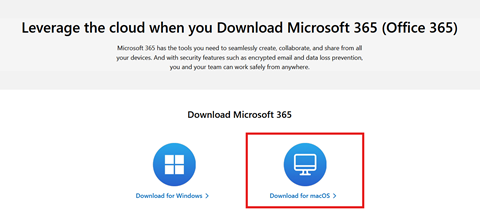
To Install Office365 ProPlus on a Mac:

1. Sign in to Office365 using your LSUMail account (e.g. mtigers1@lsu.edu). Please note, if you are off-campus, you may be required to follow additional steps to prove your identity. If you need assistance or more information about this step, please see Office365: Logging in with Multi-Factor Authentication (MFA).
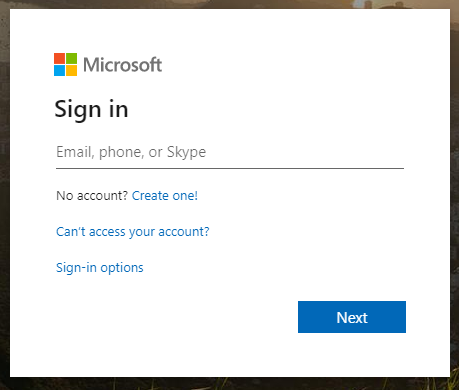
Sign in to Office


2. Click the Office 365 button at the top left corner.

  • NOTE: If you do not see the Office 365 link at the top left, please visit office.com and login with your LSUMail credentials. Then, continue to step 3.

the Office 365 button


3. On the main screen, locate Other Install Options under the Install Office apps drop down menu at the top right of the screen.

Install Office Apps located at the top right corner of screen. Other install options highlighted


4. Click Install in the middle of the screen.

Office Installation page


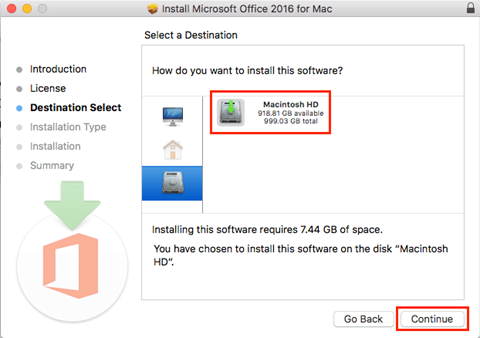
5. After the download has finished, open the file to start the install, and on the Introduction page select Continue at the bottom right. 
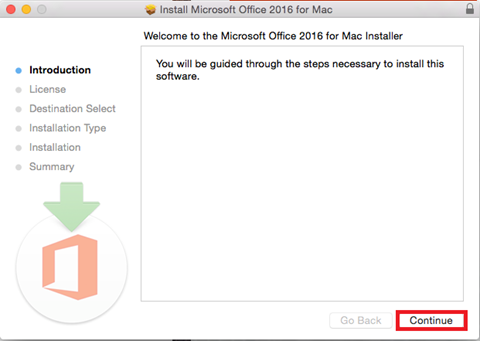
Introduction page with Continue at bottom right corner


6. Select the Agree option to agree to the terms and conditions, then select Continue.
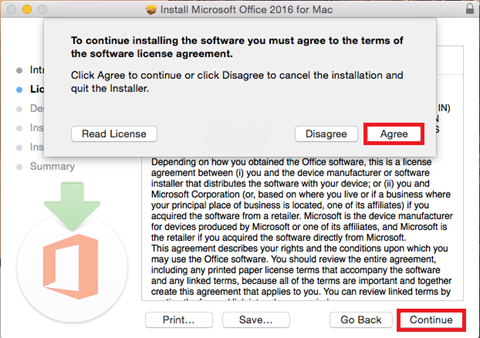
Agree button in bottom right corner of pop-up


7. On the next screen, select Continue.

Continue button at the bottom right corner  


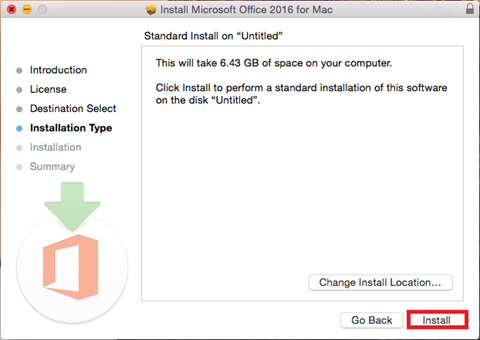
8. Now select Install

Install button at bottom right corner


9. Now type in your computer password then select Install Software at the bottom right of the window.
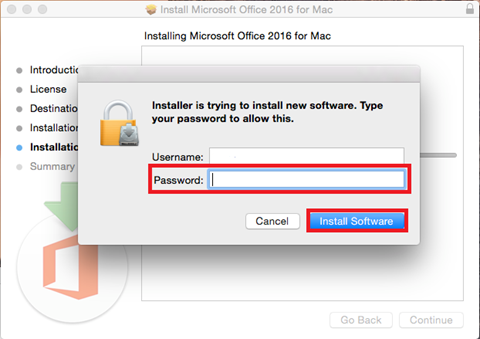
Enter username and password window


10. Select Close to finish the installation process. 
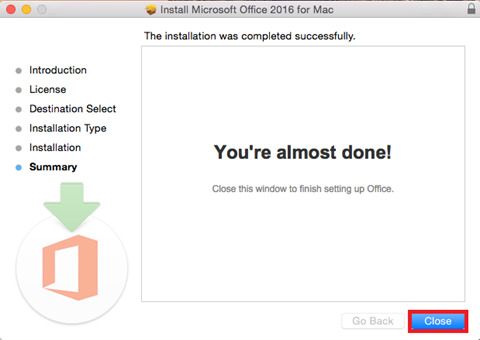
Finish screen with Close button at bottom right corner


Referenced from: Microsoft


General Overview

This article explains how to set up an iPhone to use the Modern Authentication protocol for accessing the LSUMail e-mail system.


iOS 14 Limitations

Please note you will only be able to use the Outlook application for LSUMail if you are using iOS 14 or later.


Configuration Steps

1. Remove any existing Exchange e-mail from your phone, if applicable.

      *** IMPORTANT NOTE ***
  • If your phone currently has an e-mail app that is accessing the old LSU Exchange e-mail system, you must remove the account before proceeding to Step 2. Otherwise, you will end up with duplicate e-mails, duplicate contacts & duplicate calendar entries.


2. In the "Settings" App on your home screen,


Office 2019 logo

General Information

Microsoft Office is a suite of products developed by Microsoft which includes Microsoft Word, Excel, Access, Publisher, Powerpoint, and Outlook.

Please note that if you are already using Office 365 (more information in the following article link - Office 365), there is no need to update to 2019. Office 365 already contains all the latest and greatest updates to all the Office applications.


Office 2019 Enterprise Deployment and Installation

Office 2019 will not be available for download on Tigerware as Microsoft has changed the methods by which the Enterprise version of Office is deployed.

Microsoft has created the Office Deployment Tool (ODT) which your TSP can use to customize and deploy your department's Office 2019 installation. 

Therefore, if

Live Chat with the LSU ITS Service Desk!

GROK: Documentation
wireless icon
Wireless Documentation


Email Logo
E-mail Documentation


Moodle Icon
Moodle Documentation


Software Icon
Software & TigerWare Documentation


Networking LOGO
Networking Documentation
 

Service Catalog Icon
A-Z List of IT Services

Student Services: LSU Overview

Popular Services

GROK: LSU's Online Knowledge Base. Provides documentation on software & technology offered by LSU IT Services, along with many articles on other aspects of LSU.

TigerWare: Get plenty of free & discounted software. A valuable resource offered to current LSU students.

LSUMail: The e-mail system provided to students by the University.

Wireless: Connect to the Secure Wireless Network at LSU.
 

LSU Electronic Resources

 General:
Discounts, Tech, and Software:

LSU Campus Resources

Student Information