myLSU Account: Multi-Factor Authentication
Remember: You can manage your MFA enrollment anytime through the MFA Setup portal at https://mfasetup.lsu.edu
You should always have multiple verification methods enrolled, such as authenticator apps and passkeys on more than one device, to prevent account lockout or need for an MFA reset!
MFA Quick Links
If you’re already familiar with MFA, you can jump to a specific section with the links below. If this is your first time enrolling in MFA or you’d like to understand more, please read through the rest of this article starting with “About Multi-Factor Authentication (MFA).”
In this article:
Setup Guides:
Other MFA articles:
About Multi-Factor Authentication (MFA)
Multi-factor authentication (MFA) provides an extra layer of security to your account by ensuring only you can approve valid log in attempts to your account. Multi-factor authentication pairs something you know (like your password) with something you have (like an app or special code) to ensure that an attacker cannot login to your account without access to both methods. Once MFA setup has been completed, you can also set up passwordless authentication through the Microsoft Authenticator or passkey registration to make your sign in experience even easier.
After MFA is configured for your account, you will be asked to verify your sign-in during off-campus log in attempts or security-sensitive operations to make sure that you, and only you, can log in to your account and access your personal and private data. More information about logging in with MFA can be found here: https://grok.lsu.edu/Article.aspx?articleid=19930
Because MFA is so important to secure your account, it is required to set up MFA for your myLSU account before you can access your LSU mail and other resources.
Going forward, you will periodically be asked to re-verify your logins on trusted devices, as well as verify logins on new devices, so please make sure you’re keeping your methods up to date and have multiple methods available. It is recommended to configure a synced passkey to ensure you have continued access to verify your account access, configure device bound passkeys on primary devices for convenience, and keep a Microsoft Authenticator enrollment active for backup.
Applications behind Microsoft authentication like Office 365 (LSUMail, Microsoft Office applications, OneDrive, Teams), Workday, Box, and Zoom are protected by MFA.
Whether it is your first time setting up MFA for your account or already have MFA but need to add a new authenticator app or passkey, the MFA Setup portal can always be accessed at https://mfasetup.lsu.edu. If MFA is required for your sign in but you haven't registered yet, you will be automatically directed through the MFA setup process after your first sign on. Please note that after your initial configuration, you will always need access to at least one of your MFA verification methods to sign-in to the MFA setup portal, even if you are on campus. If you have a new device but don't have a synced passkey or access to your old authenticator app anymore, you will need to submit a ticket to the LSU ITS Service Desk to have your MFA methods reset.
[back to top]
What methods should I enroll?
There are two recommended types of verification:
- The Microsoft Authenticator application is recommended. This app provides a secure notification for approval on your device. The Authenticator app also supports passwordless authentication, passkey authentication, and one-time code generation for authentication.
- This app requires network connectivity to receive push notifications, but the one-time codes generated from the app can also be used if you don't have Wi-Fi or cellular service.
- Passkey based authentication allows for both synced passkeys and device bound passkeys. Users must configure an app-based authenticator before a passkey can be configured, but once a passkey is available for your account the Microsoft Authenticator may not be needed. Passkey authentication also includes using hardware based security keys such as Yubikeys.
- Synced passkeys are stored on your iCloud Keychain, Google Password Manager (Android/Chrome), or third party Password Manager. These can be used across multiple devices and are highly convenient.
- Device bound passkeys are stored on a single device and provide a convenient passwordless sign-in experience that meets all MFA requirements and doesn't require answering a request through another app.
If you are unable to install the Microsoft Authenticator, an alternative mutli-factor authentication method will need to be configured.
- An alternative authenticator app can be registered to generate a verification code. Mobile applications like Microsoft Authenticator, Google Authenticator and Authy; mobile, desktop, and browser based Password Managers that support OTP codes; or open-source browser extensions that offer OTP codes can all be enrolled. These apps will generate a unique code for your account every 30 seconds, and you must type the current 6-digit code shown on the app at the login prompt after entering your username and password.
- Code generators can be used without a network connection, as the special code is based on a formula that uses the current time.
- Code generators are great options for international travel as they do not require connectivity.
- A phone call to a primary or an additional alternate phone number. You must answer a phone call then press “#” on your phone at the automated prompt. However, please note phone call based authentication methods are being retired by Microsoft and will not be available as of February 2027. If you're using a phone call based authenticator, you are encouraged to set up an authenticator app and passkeys as soon as possible.
- Phone call methods require you to have cellular service and be able to accept a call from Microsoft. Cellular network or other device based issues can make phone call based authentication inconsistent and is not recommended.
- Phone call verification does not offer strong security. Approving sign in requests from phone calls that are unrelated to your sign in activity can lead to account compromise.
- Your mobile phone or phone number that would be available to you at the time of sign in should be used. Teams phone numbers cannot be registered.
You will at least need an app based authenticator available as your first MFA enrollment, and then you should configure additional methods as backups to ensure continued access to your account (for example, you might lose or replace your phone with the authenticator app—having access to a second method such as a synced passkey connected to your iCloud or Google account, a device bound passkey on your primary devices, or a second authenticator app on another device or tablet makes sure you always have the ability to access your account). Your Microsoft Authenticator enrollment cannot be backed up or restored to a new device, so ensure that a portable method like a synced passkey is enrolled or alternate authenticators are available for you on multiple/separate devices.
We strongly recommend enrolling the Microsoft Authenticator app as it provides multiple ways to validate your login, including push notification and code generation. Then, we recommend setting up synced passkeys or multiple device-bound passkeys that can be used to access your account from trusted devices--especially if you lose access to your Microsoft Authenticator app and need to re-enroll.
If you’re ready, jump directly to the setup guides below: Setup Guides
[back to top]
Why do I need two methods?
Having alternate backup methods ensures you’re always in control of your account!
Your phone might break or get lost. You may be traveling without cellular service. Maybe you had to upgrade your phone and lost access to your original authenticator app.
If you only configure a single factor, you won’t be able to validate your own legitimate access to your account if you lose access to your single primary factor! Because MFA verification is also required to modify your MFA enrollment, you will be unable to fix your access yourself unless you can regain access to that factor later.
Ideally, you should have a backup method configured on a different device than your primary device. This could be a synced passkey, device bound passkey (on a separate device than the one with your Microsoft Authenticator app), or authenticator app on a second, distinct device. Phone calls will not be able to be used as a second backup factor after February 2027, so please ensure that backup methods like passkeys are configured for your account as soon as possible.
If you fully lose access to all of your enrolled authentication methods, you can request an MFA reset through the LSU Service Desk after identity verification with a service desk analyst. Having multiple distinct verification methods puts you in control and ensures you’re always able to sign-in and manage your account when you need it the most.
Remember! Multi-factor verification is not a one-time only verification. You will need continued access to your verification methods as long as you’re using your account. Most apps can be configured to remember your verification for 30 days before requesting re-verification.
If you need to know what methods you have available, add methods, or change methods, please visit the MFA Setup portal (https://mfasetup.lsu.edu).
If you’re ready, jump directly to the setup guides below: Setup Guides
[back to top]
How will I provide a second factor while traveling?
The best verification factor for users who travel is the verification code. An app that generates verification codes should be configured on all devices you travel with. These apps do not need Wi-Fi access or cellular service to generate valid login codes for you.
The Microsoft Authenticator automatically provides a verification code if you have configured notifications.
Other code generator apps can be configured on phones, tablets, or laptops to ensure you always have access to a verification code when abroad. Passkeys may be viable, but your passkey is only as secure as the device it is saved on--depending on where you are travelling, devices that can be unlocked by others by fingerprint, PIN, or other means are not recommended to use passkeys where it may provide an unauthorized user access to your account.
To set up an authenticator to generate verification codes, access the MFA Setup portal (https://mfasetup.lsu.edu) and follow the verification code setup instructions below: Verification code
[back to top]
I’m already enrolled. How can I modify my enrollment?
You will need access to at least one of your previously enrolled factors, such as an authenticator app or passkey. If you do not have access to any of your MFA factors, please try again later when you will have access or contact the Service Desk for an MFA reset only if none of your factors are available to you anymore.
Access the MFA Setup portal by going to https://mfasetup.lsu.edu
You may be asked to sign in with your username and password. Then, you will have to verify your sign on with one of your enrolled factors. If your passkey is available, you can use passwordless sign in.
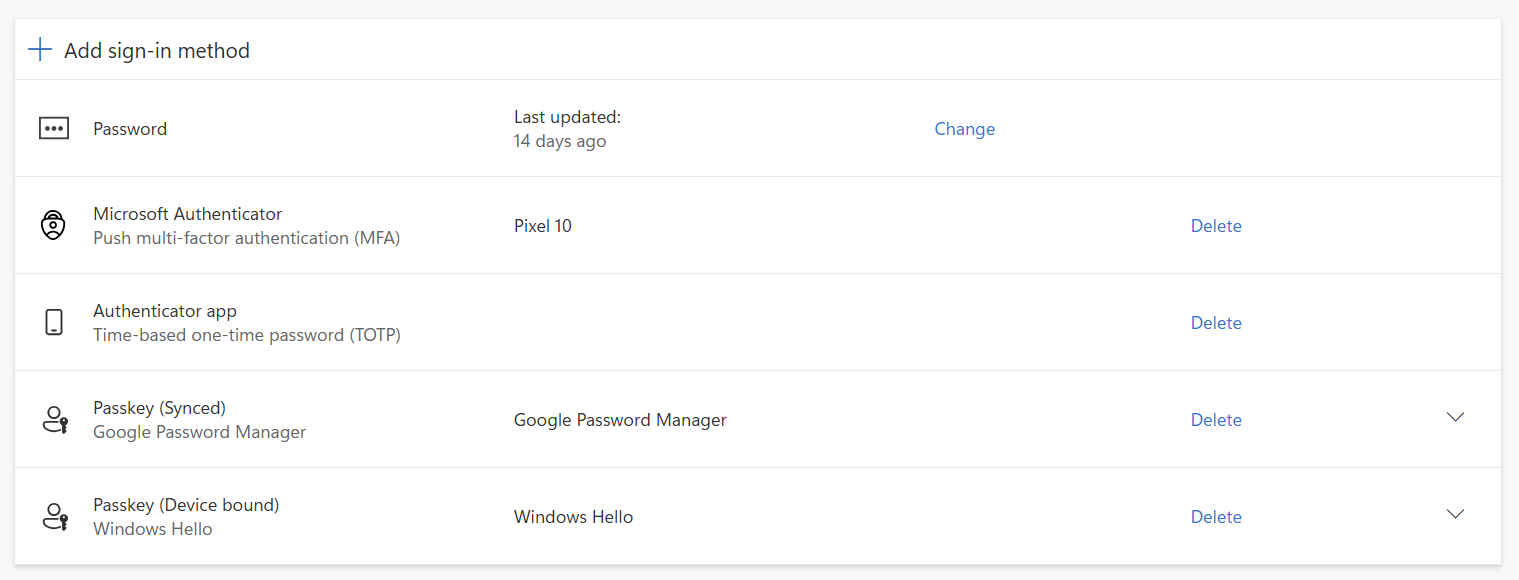
The portal will show you all your currently configured or available MFA factors. For example, in the screenshot below, this user has the Microsoft Authenticator app configured, a code generating authenticator app, a synced passkey, and a device bound passkey. If this user replaces their phone with the Microsoft Authenticator app, they can still access the MFA setup portal using one of their passkeys or code generator, which will allow them to reconfigure a new authenticator app without requiring a call to the service desk.
Factors can also be deleted if they are no longer in use or associated with old devices.
Chose “add sign-in method” to add a new enrollment. Choose the relevant method from the list.
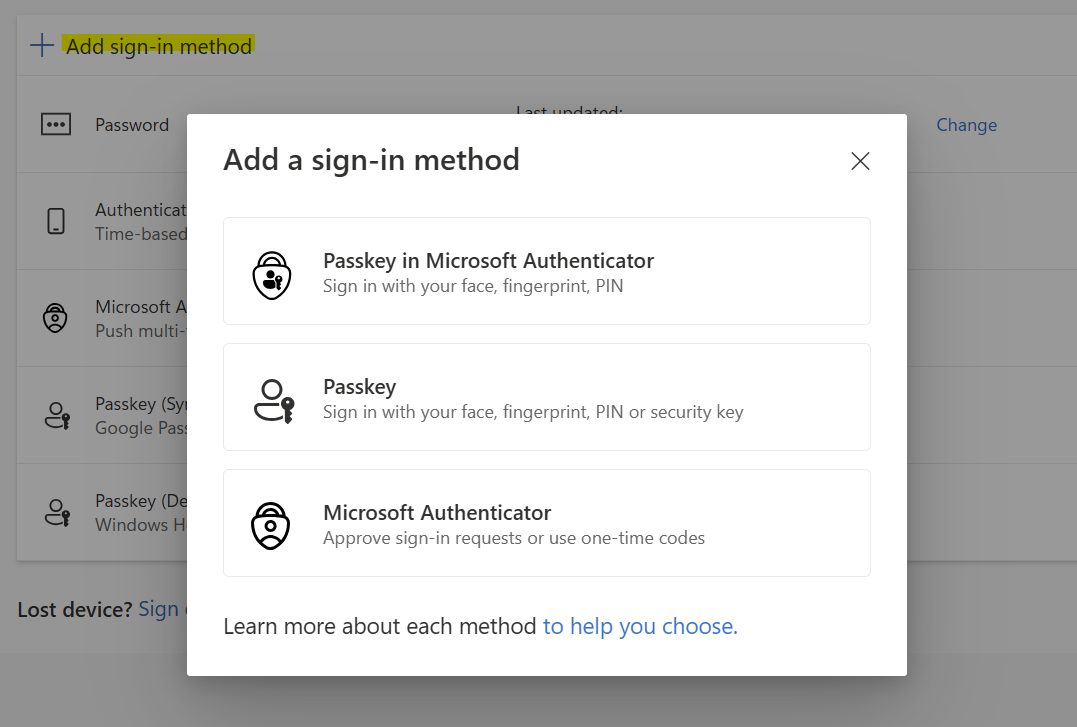
Note: Phone call sign in methods will not be available after February 2027.
You will be required to verify any new method to confirm that it will work before the enrollment is completed. Failure to validate the method during sign up may lead to an incomplete/unusable registration.
Note: If you have passwordless authentication configured through Microsoft Authenticator, the passwordless authentication notification may prompt before entering your password or instead of your default verification method. When not using passwordless authentication, the MFA push notification will only trigger after successfully entering your password. For more information, see the Passwordless Sign-in with Microsoft Authenticator article for more details: https://grok.lsu.edu/Article.aspx?articleid=20125
For more help configuring each type of authenticator, please reference the Setup Guides below.
[back to top]
Setup Guides
Guides:
If you have not gone to the MFA Setup portal and try to access another service like LSUMail and you do not have any MFA factors enrolled, your sign on will be interrupted and you may be required to configure a verification method.
The first time you access the MFA setup portal through an interrupted sign in or by accessing the MFA Setup portal directly at https://mfasetup.lsu.edu, you will be asked to configure the Microsoft Authenticator app.
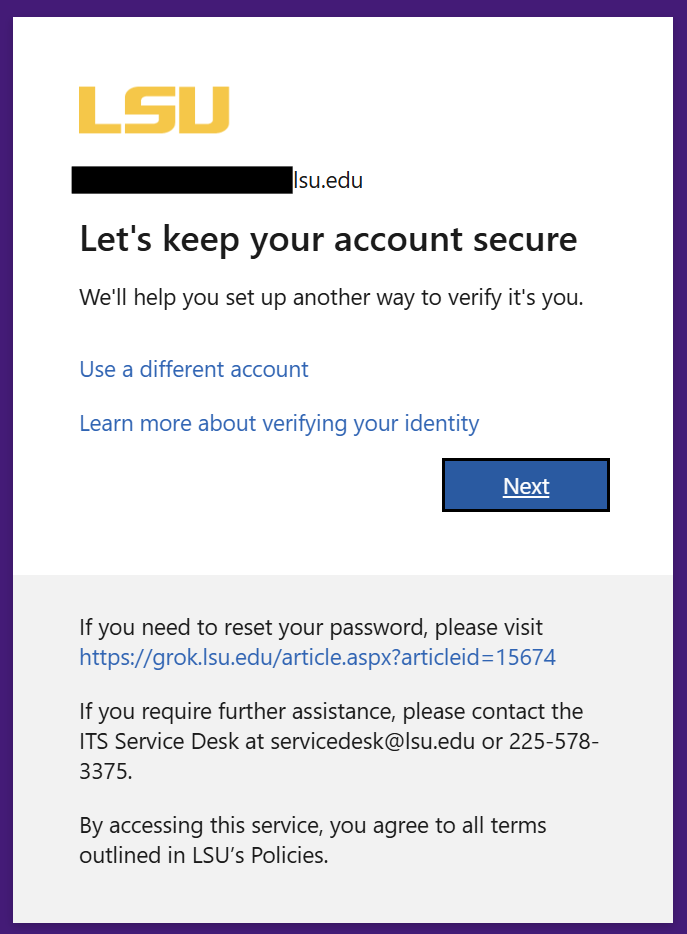
We recommend configuring the Microsoft Authenticator first as your primary verification method. However, if you would like to use a different factor than the Microsoft Authenticator, click “Set up a different authentication app” for other 3rd party code generators.
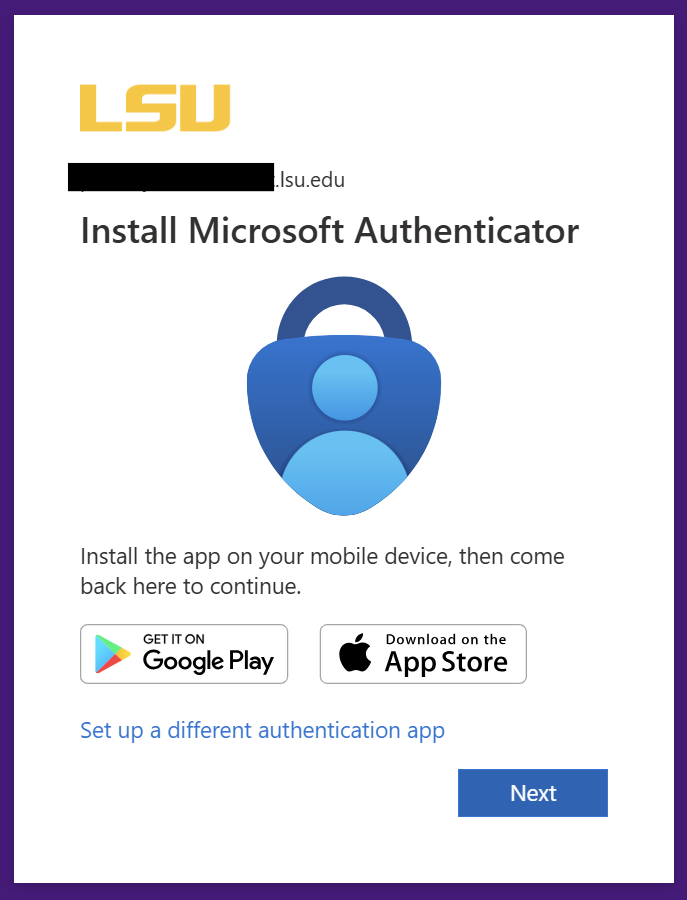
You will initially have to configure at least one of the provided methods, but we strongly encourage configuring additional factors.
Follow the guides below to configure your preferred verification factors.
Microsoft Authenticator
You will need
- Your smartphone or tablet
- The Microsoft Authenticator App on that device
- Internet connection through Wi-Fi or cellular data
Warning: Do not uninstall the Microsoft Authenticator app or delete your account from the app after completing enrollment if you have not configured backup methods such as synced passkeys or authenticators on other devices. You may lock yourself out of your account if you do not have another MFA method configured.
We strongly recommend the Microsoft Authenticator app as it is the easiest verification method and has the least issues.
During sign-on, your Microsoft Authenticator app will receive a notification on your verification device (usually your cell phone) asking you to approve or deny the logon by entering number within the app notification that matches a number displayed during your sign on attempt.
Quick Tip: The Microsoft Authenticator app has the added benefit of providing verification codes in addition to the verification notification. This is useful if you are trying to verify a sign in but temporarily do not have internet access on your verification device.
To configure:
Step 1: Install the Microsoft Authenticator app.
- You can find and download Microsoft Authenticator yourself in the Apple App Store or the Google Play Store.
- Links to both should be available on the “Install Microsoft Authenticator” prompt during first time enrollment.
Step 2: Open the Microsoft Authenticator app on your device.
Note: If this is your first time opening the app, you may have to allow notifications. You will also have to allow access to the camera, which is only used to scan the unique enrollment QR code that is generated for your account.
Follow the instructions in the MFA setup portal. Within the Authenticator app, you can hit the “add account” plus sign at the top of the app. When asked “what kind of account are you adding,” choose a work or school account.
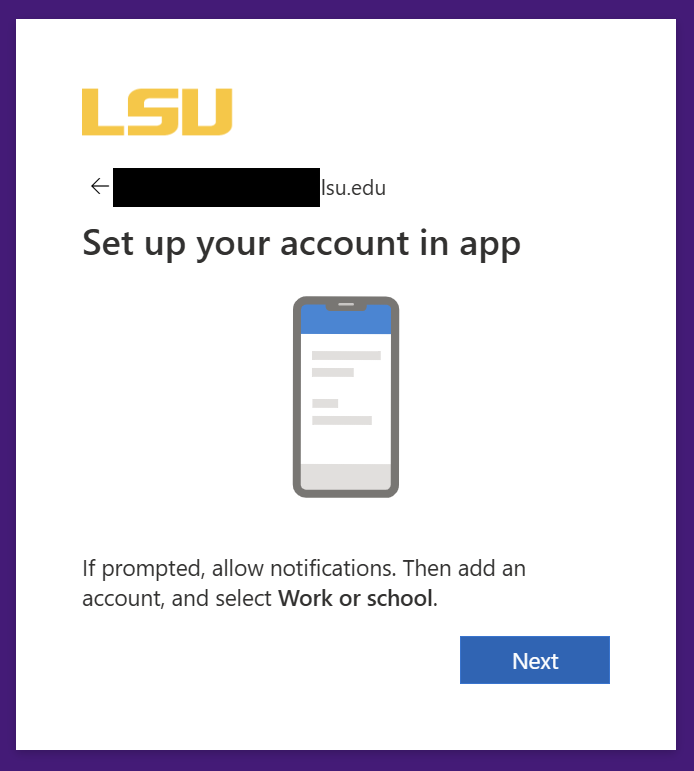
Step 3: If you started the process on a desktop and are provided a QR code, select “Scan a QR code” in the authenticator app after choosing “work or school account.” Your camera will open and you will scan the QR code provided by MFA setup portal on your device with the Microsoft Authenticator app. If you’re unable to scan the code because of device issues or for devices without a camera, you can use the “Can’t scan image?” link to receive your “Code” and “URL” to enter directly into the Microsoft Authenticator app.
If you have not set up MFA yet and chose “Sign in” to add a work or school account instead of selecting Scan a QR Code, you will be asked to continue setup in a browser.
Note: The QR code is unique to your account. Treat this QR code like a password as this QR code can be used to set up an app to approve logins to your account.
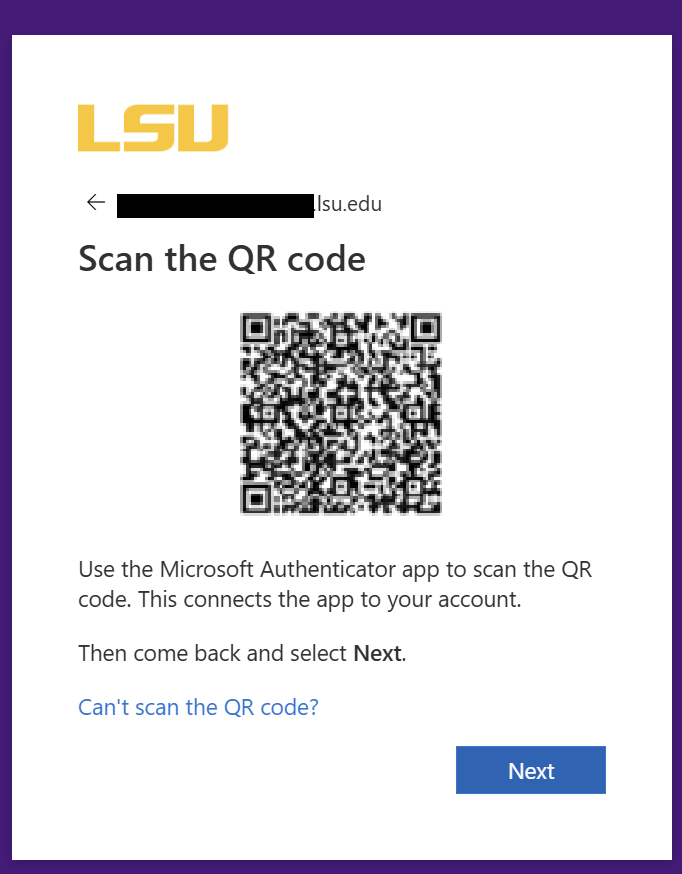
Note: This step is time sensitive. If the app fails after scanning the QR code you may need to go back and restart this step to get a new, unexpired QR code.
Step 4: Your phone app will continue into your “Accounts” list after successfully scanning the QR code. You should see “Louisiana State University” and your email address with a 6-digit number that changes every thirty seconds. You can ignore this 6-digit code for now. It can be used as a backup verification method later. Just hit next in the MFA enrollment portal.
After hitting next in the MFA enrollment portal, you will be shown a two digit number. This will need to be provided back to the app in the next step.
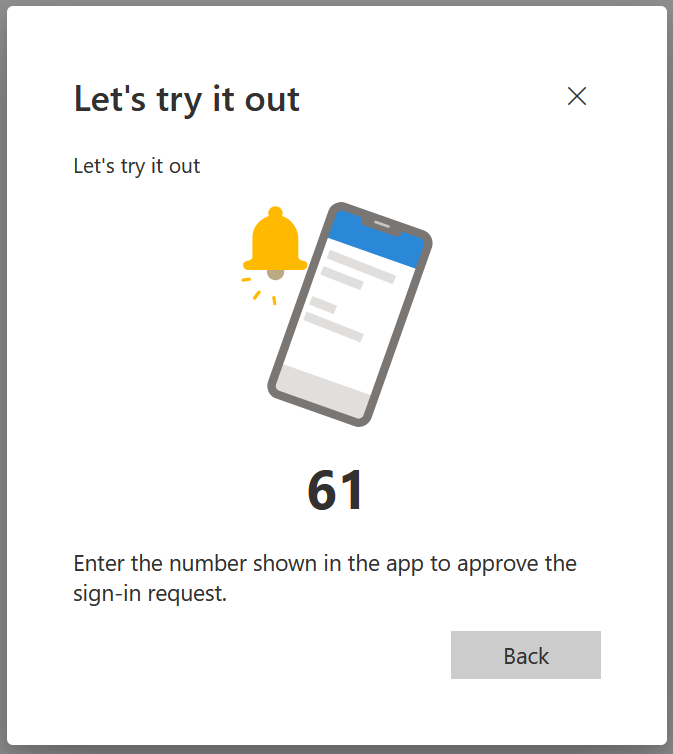
Step 5: Back on your phone, approve the notification by typing in the two digit code displayed during enrollment (either within the Microsoft Authenticator app or through a notification that should pop up at the top of your phone like a text message or email) to confirm that the Microsoft Authenticator has been configured correctly for your account.
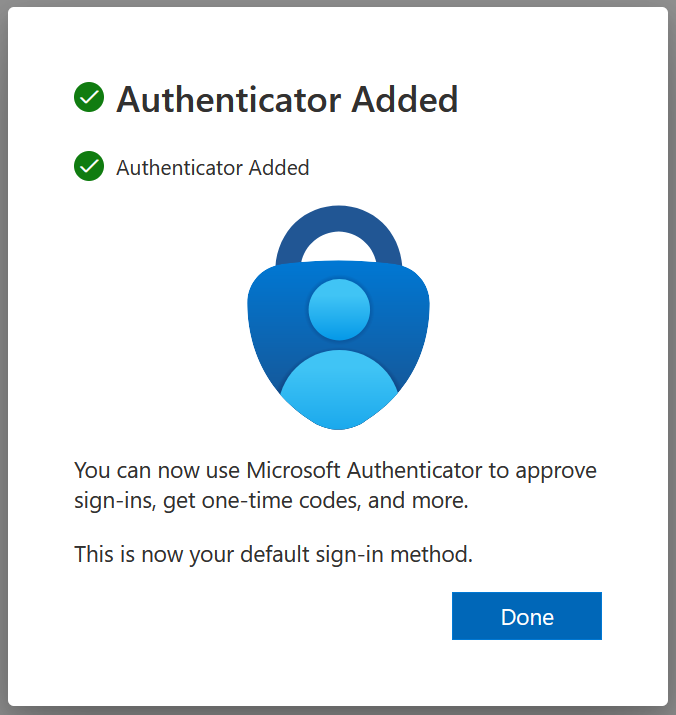
Step 6: Hit next to complete enrollment. If the Microsoft Authenticator is your only authentication method, please go to the MFA Setup portal (http://mfasetup.lsu.edu) to configure additional methods using the guidance in this article.
For example, we strongly recommend proceeding to add synced and device bound passkeys to ensure you have access to your account if you lose or replace the device with the authenticator app.
If you have configured the Microsoft Authenticator for notifications, you can also enable passwordless sign-in for your account. When you enable passwordless sign-in, you will be able to sign-in with just your username and a special verification notification on your phone. You will not have to provide your password or perform additional MFA verification. For more details on how to set up and use passwordless sign-in through the Microsoft Authenticator app, please visit our GROK article: https://grok.lsu.edu/Article.aspx?articleid=20125
[back to guides]
[back to top]
Phone
Phone call based verification is being discontinued by Microsoft and will not be available for use or enrollment by February 2027. We strongly recommend configuring authenticator apps or passkeys before this date.
You will need
- An off-campus phone
- Cellular service to receive calls
During sign-on, you will receive a phone call from Microsoft with an automated prompt asking you to hit pound (#) on your phone to verify the sign-in.
To configure:
To access the phone enrollment option, you may need to choose "Other options" (at the very bottom, beneath “Set up a different authenticator app”) on the Install Microsoft Authenticator screen if this is your first time setting up MFA.
Step 1: Enter your authentication phone number. Remember: you will have to answer calls on this phone when you are attempting to sign-in from off-campus.
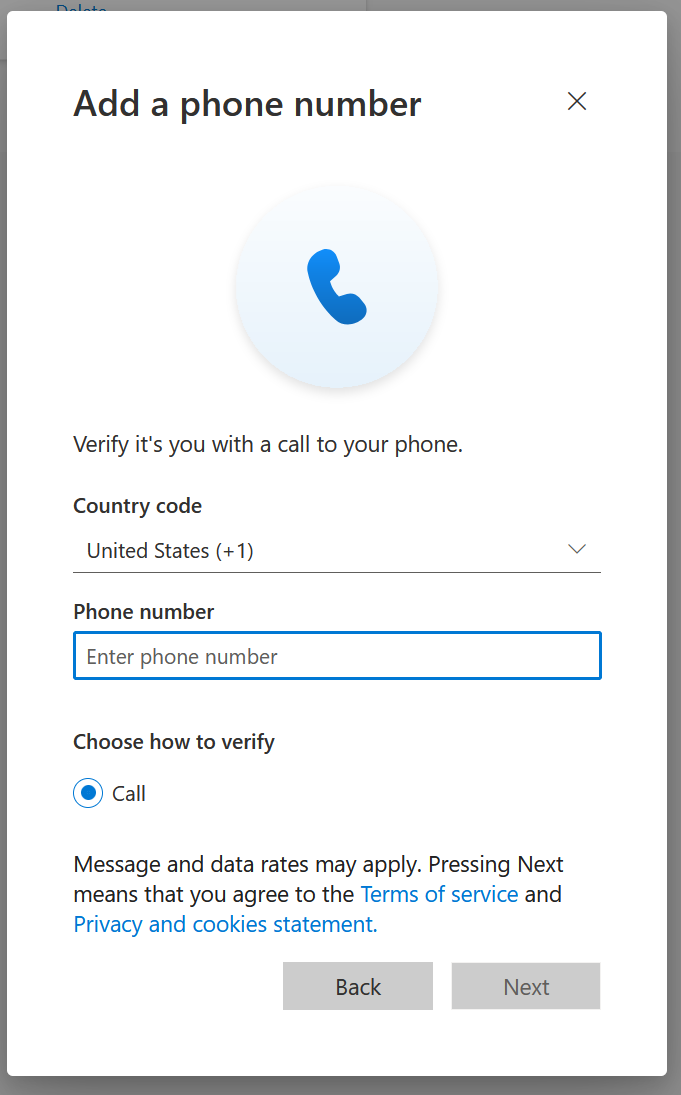
Step 2: Hit next. The system will attempt to call the provided number.
Note: Not getting the call? The phone call should come from +1 (866) 539 4191, +1 (855) 330 8653, or +1 (877) 668 6536. You should make sure that you do not block these numbers, do not have your phone on "Do not disturb," do not have your phone configured to silence unknown callers, or have other service issues that may prevent you from answering the call. Please note, Microsoft will only attempt to call your verification number three times during enrollment to prevent the service from being abused to send repeated calls to different numbers. If you have failed to receive, rejected, or do not answer the call three times you may get stuck on a screen that says "We're sorry, we ran into a problem. Please select 'Next' to try again." When hitting next, you will still not receive the call. If this happens, you can still configure an app but you will not be able to re-try the verification call to an authentication phone or alternate phone for at least 3 hours.
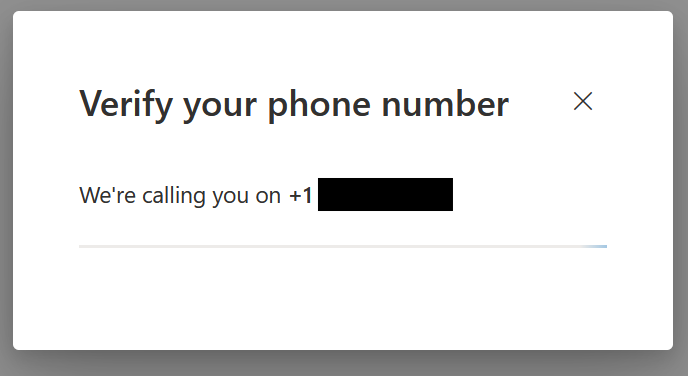
Step 3: Answer the phone call. An automated prompt will ask you to hit pound (#) on your phone to verify your sign-in. Answering this successfully will enroll this phone number for verifications on your account. You should get the following success message after answering the call.
Quick Tip: You can hit pound at any point during the message. You do not have to wait for the message to finish. If you wait too long, the call will time out and verification will fail.
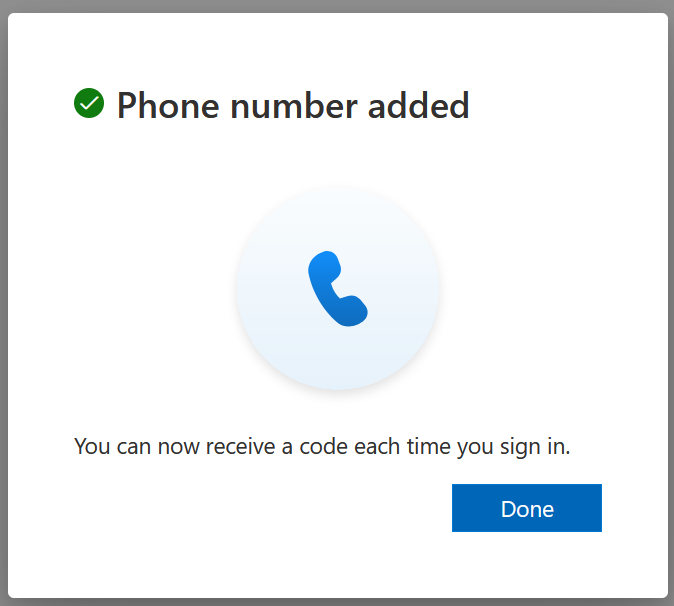
Step 4: Hit next to complete enrollment. If your phone is your only authentication method, please go to the MFA Setup portal (https://mfasetup.lsu.edu) to configure additional methods using the guidance in this article. Users with phone enrollments can expect to get prompts from Microsoft after sign in to prompt for passkey enrollment. It is strongly recommended to have passkeys or authenticator apps configured by February 2027.
[back to guides]
[back to top]
Verification Code
You will need
- A code generator application on your phone, tablet, or laptop
- Mobile: Google Authenticator, Authy, etc
- Desktop: 2fast, Authenticator.cc
- Password Managers: 1password, Keeper, Bitwarden, etc
Note: If you have configured the Microsoft Authenticator for notifications, it has automatically configured a verification code for you in the Microsoft Authenticator app. Use these instructions only for setting up a third-party code generator.
During sign-on, you will be asked to provide the 6-digit code from your authenticator app to verify your logon.
To configure:
Step 1: Install a code generator app (Google Authenticator, Authy, etc.) or open a code generator app that you already use. If you use a password manager, it may provide options for code generation as well.
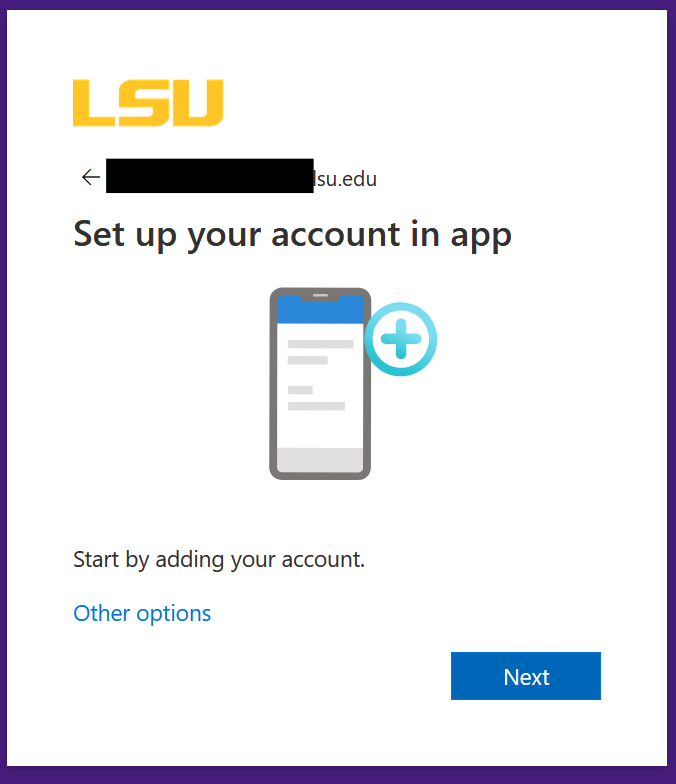
Step 2: In the MFA setup portal, click the “I want to use a different authenticator app” link to start the enrollment for third party code generators. If you miss this step, the QR code will only be valid for the Microsoft Authenticator app.
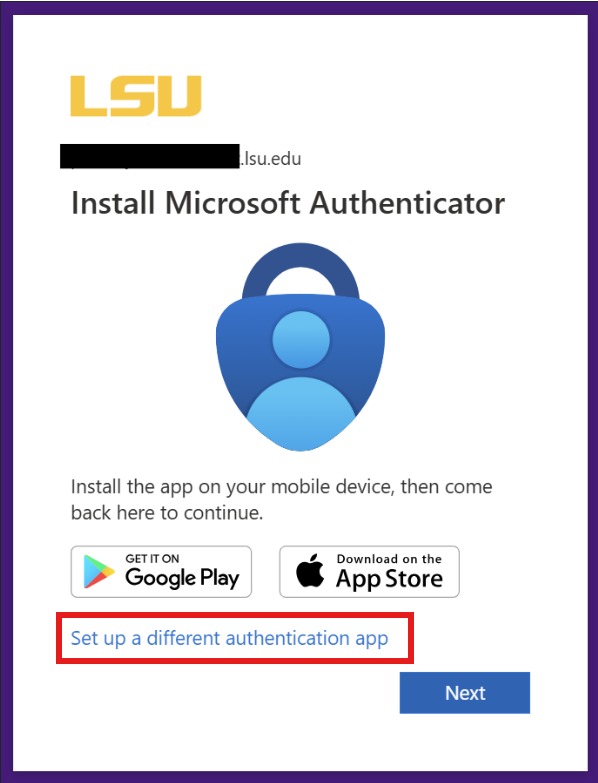
Step 3: Open the third-party authenticator app. Each app will be different, but you should have the option to add a new account within your chosen app. When the app is ready, hit next in the MFA enrollment portal.
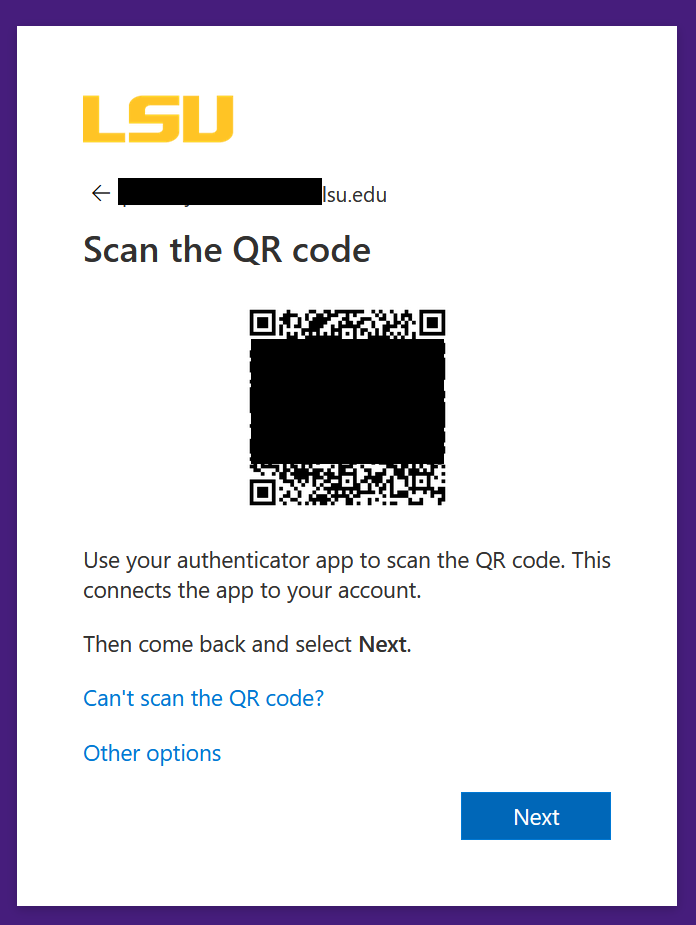
Step 4: Scan the new QR code with your app of choice. If you’re unable to scan the code because of device issues or for devices without a camera, you can use the “Can’t scan image?” link to receive your “Account name” and “Secret key” to type or paste into your chosen authenticator app.
Note: The QR code is unique to your account. Treat this QR code like a password as this QR code can be used to set up an app to approve logins to your account.
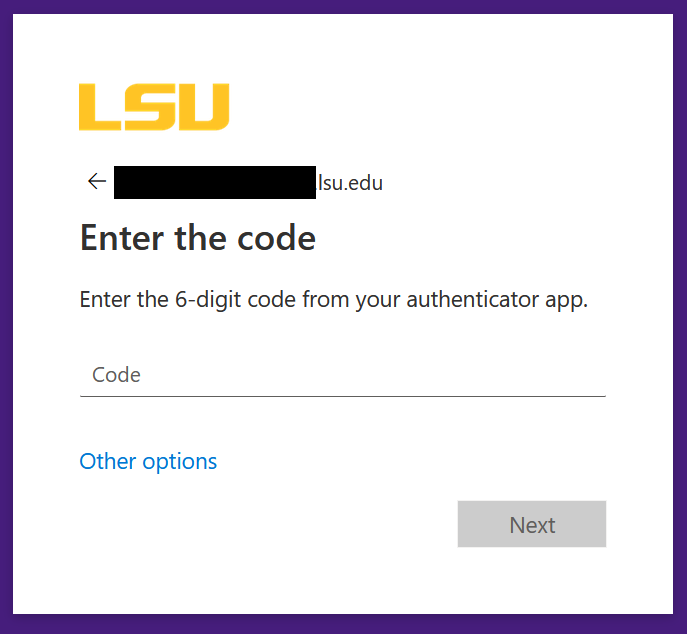
Step 5: Input the 6-digit code displayed by your app to confirm it has been configured correctly.
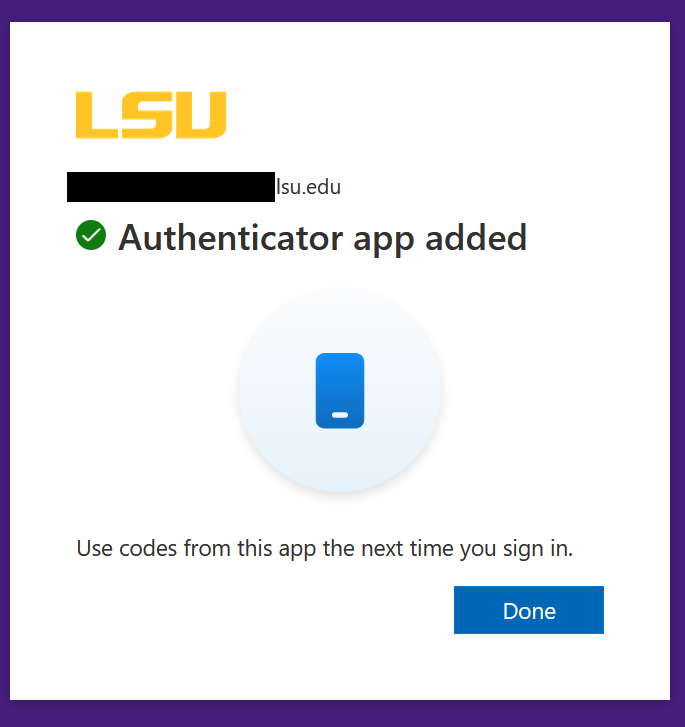
Step 6: Hit next to complete enrollment. If your code generator is your only authentication method, please go to the MFA Setup portal (https://mfasetup.lsu.edu) to configure additional methods using the guidance in this article.
[back to guides]
[back to top]
I still need help with MFA!
If you’re having trouble with MFA, please refer to our MFA troubleshooting article (https://grok.lsu.edu/Article.aspx?articleid=19960) that covers common issues users have with MFA.
If your issues aren’t covered in this article or the troubleshooting article, you need additional help walking through some of these steps, or you require an MFA reset, please contact the LSU Service Desk.
[back to top]