Office365 ProPlus: Installing Office Apps (Mac)
NOTE: You cannot use any Office software until your first day of class, regardless of status, if you are a new student.
To Install Office365 ProPlus on a Mac:
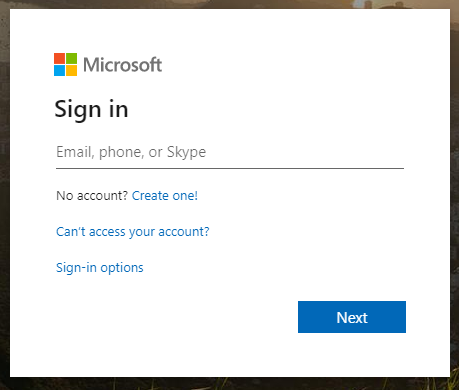
1. Sign in to Office365 using your LSUMail account (e.g. mtigers1@lsu.edu). Please note, if you are off-campus, you may be required to follow additional steps to prove your identity. If you need assistance or more information about this step, please see Office365: Logging in with Multi-Factor Authentication (MFA).
2. Visit the following page: Download Microsoft 365
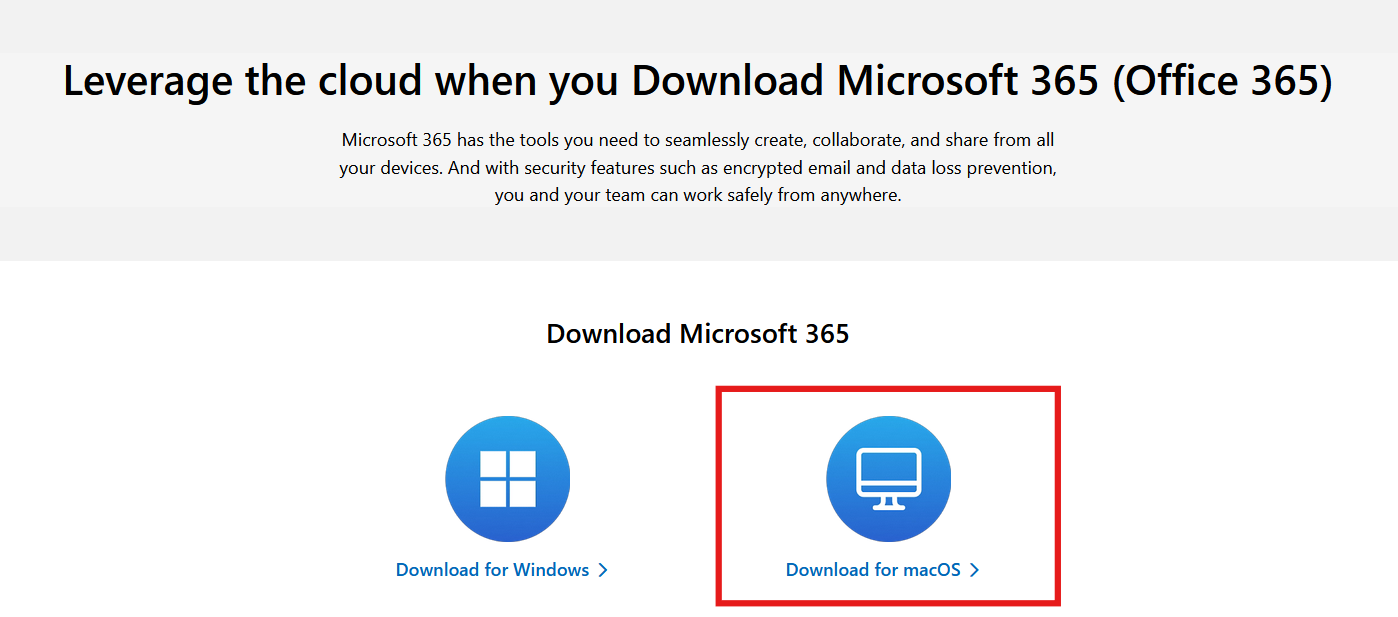
3. On this page, locate the Download Microsoft 365 section and select Download for MacOS.
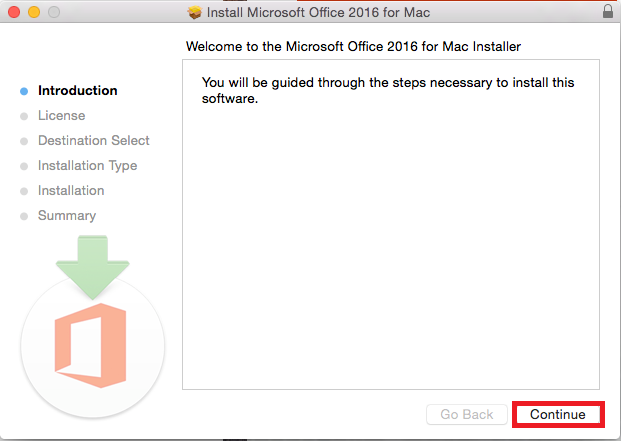
4. After the download has finished, open the file to start the install, and on the Introduction page select Continue at the bottom right.
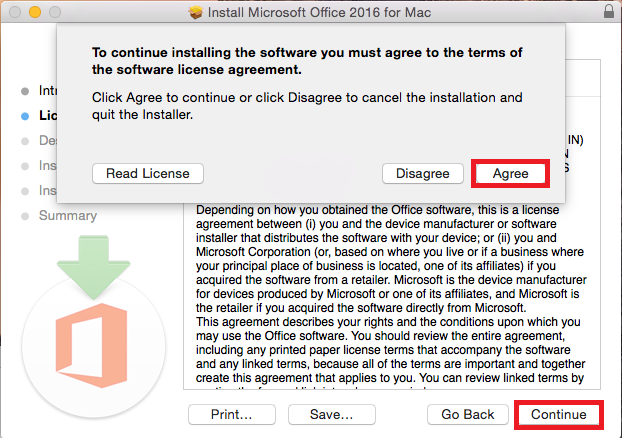
5. Select the Agree option to agree to the terms and conditions, then select Continue.
6. On the next screen, select Continue.
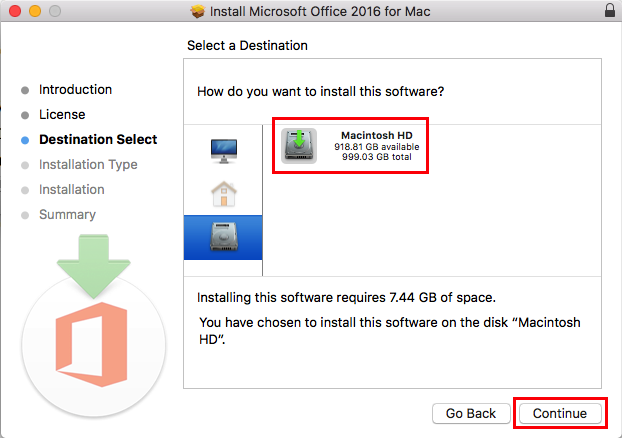
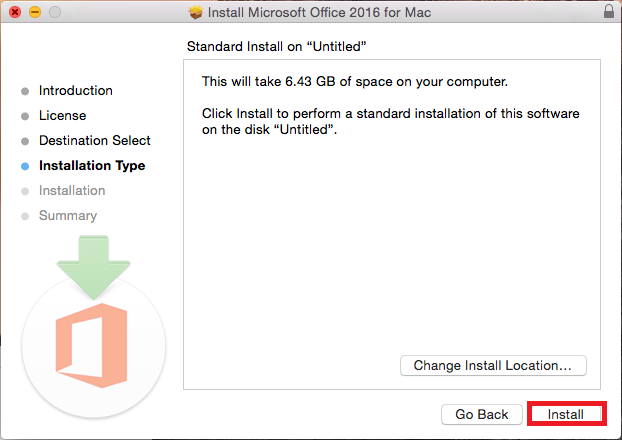
7. Now select Install.
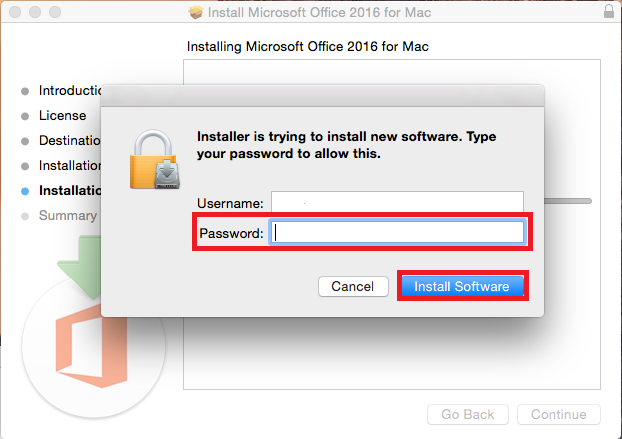
8. Now type in your computer password then select Install Software at the bottom right of the window.
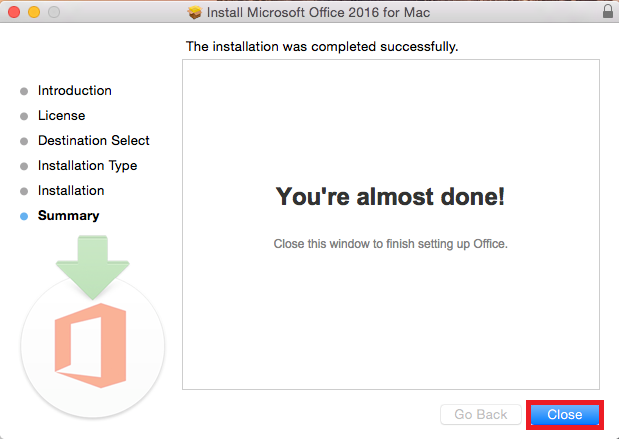
9. Select Close to finish the installation process.
Referenced from: Microsoft
17771
1/27/2026 11:28:35 AM